English
 Español
 Polski


Esplorare OneDrive: sincronizza solo le cartelle e i file selezionati su richiesta
- 13 Sep, 2026
- Home
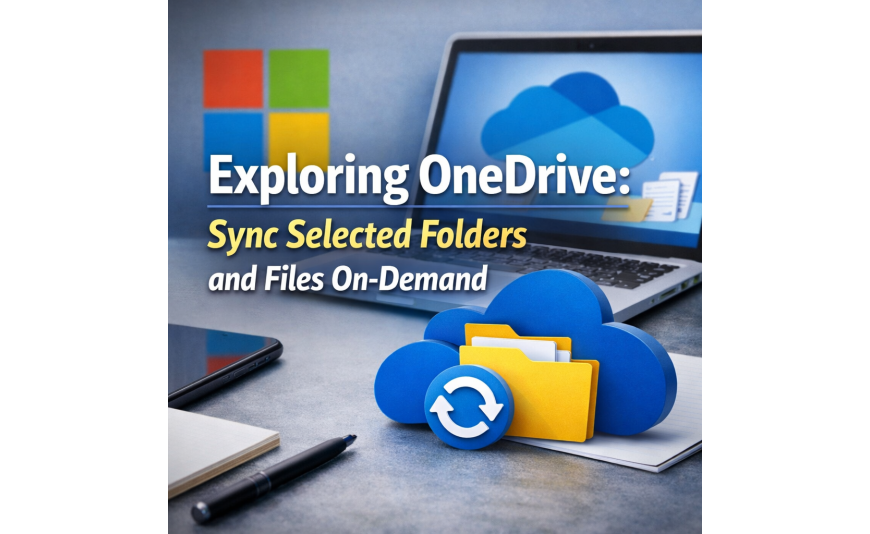
Esplorare OneDrive: Sincronizza Cartelle e File Selezionati On-Demand
In today's digital age, managing and accessing files efficiently is more important than ever. With countless documents, photos, and other files scattered across various devices, finding a centralized solution becomes essential. Cloud storage services like OneDrive have emerged as a reliable choice, offering the ability to store and manage files seamlessly across multiple platforms. However, understanding the full potential of such tools can sometimes be overwhelming. This is where features like "Sync Selected Folders" and "Files On-Demand" come into play, providing users with more control and flexibility over their data.
The problem many individuals face is the limited storage space on their devices. We have all been there — trying to download that last-minute presentation, only to be met with the dreaded "storage full" notification. It's moments like these that highlight the need for a solution that doesn't just store files, but does so intelligently. Enter OneDrive, a service that not only provides ample cloud storage but also introduces innovations such as the ability to sync only the folders you really need, keeping your device clutter-free while ensuring your data is always within reach.
Imagine you're a photographer traveling across the globe, capturing stunning landscapes and vibrant street scenes. You want to ensure your photos are safely stored without carrying around multiple external hard drives. OneDrive allows you to automatically back up your selected folders, ensuring your precious memories are secure without taking up valuable space on your laptop. This feature is also invaluable for professionals who need to juggle various projects simultaneously, keeping only the most pertinent files readily available without the hassle of full downloads.
Understanding the Basics of Syncing Selected Folders
OneDrive's feature of syncing selected folders offers users a tailored approach to managing their cloud storage. Instead of bogging down your device with every file saved on the cloud, you can selectively choose which folders to sync. This means, for example, that your work documents remain readily accessible on your desktop while personal files sit securely in the cloud, waiting to be downloaded only when needed.
This selective syncing is incredibly valuable for individuals looking to maintain a clutter-free digital workspace. For those wondering "where to buy" or how to access this feature, the good news is that it comes standard with a OneDrive account. The only requirement is an active subscription, which can often be found at a low price, making it an affordable solution for both individuals and businesses. The key is knowing how to activate and set up your preferences within the OneDrive interface to make the most of this functionality.
Exploring the Power of Files On-Demand
Files On-Demand is another revolutionary feature offered by OneDrive that enhances file management by allowing users to access their entire OneDrive storage without downloading everything onto their device. With this tool, every file and folder appears in your file explorer, but only the ones you choose to open or sync are downloaded to your device. This ensures that you have immediate access to every file without compromising on storage space.
For example, if you have a large video project saved in your cloud, you can preview files and decide which segments to work on without waiting for the entire project to download. This is particularly useful for users working with large media files or extensive databases, as it offers flexibility in managing resources. Purchasing a OneDrive subscription is straightforward, and accounts are easily activated with a quick key or login. The question of "where to buy" often leads users to Microsoft's official site or trusted retailers, ensuring they get the best value for their investment.
Seamless Integration with Other Microsoft Services
OneDrive is not just a standalone service but a cohesive part of the larger Microsoft ecosystem. This means that integrating it with other Microsoft services like Office 365 can enhance your productivity exponentially. For instance, files stored on OneDrive can be easily accessed and edited through online versions of Word, Excel, and PowerPoint, making it a perfect companion for both students and professionals.
Moreover, OneDrive's syncing capabilities allow for real-time collaboration, which is crucial in today's remote work environment. By enabling shared access to selected folders, team members can work on documents simultaneously, ensuring everyone is on the same page without the need for constant email updates. If you're considering this integrated approach, keep an eye out for promotions or bundles that offer a low-cost way to activate these powerful tools.
Setting Up Your OneDrive for Optimal Use
To truly harness the potential of OneDrive, it's essential to set it up correctly. Start by downloading the OneDrive application on all your devices, ensuring seamless access to your files wherever you are. From there, customize your sync settings by selecting folders that are crucial to your daily operations, leaving less essential data in the cloud. This not only optimizes your device's performance but also ensures you're getting the most out of your OneDrive subscription.
For newcomers, setting up might seem like a daunting task, but Microsoft provides step-by-step guides and tutorials to simplify the process. Whether you're a student, professional, or someone who just wants to keep their digital life organized, OneDrive offers a solution that's both comprehensive and easy to manage. So, if you're wondering where to buy a OneDrive account or how to get started, Microsoft's official website is the best place to begin. With a simple activation process and a competitive price, enjoying the benefits of cloud storage has never been easier.
Why Choose OneDrive for Your Cloud Storage Needs?
There are numerous cloud storage solutions available, but OneDrive stands out due to its unique features and integration with Microsoft services. The ability to sync selected folders and use Files On-Demand gives users unparalleled control over their data, ensuring accessibility without sacrificing storage space. This makes OneDrive an attractive option for anyone looking to streamline their digital workflow.
Furthermore, OneDrive's focus on security and data protection ensures that your files are always safe, with robust encryption and privacy settings. Whether you're storing sensitive work documents or personal photos, you can rest assured that your data is in good hands. And with the option to buy OneDrive at a competitive price, accessing a top-tier cloud storage solution has never been more affordable. Whether for personal use or business, OneDrive offers a comprehensive package that caters to a wide array of needs.
Harnessing the Benefits of Cross-Device Compatibility
OneDrive's ability to seamlessly integrate across various devices is a boon for users who are always on the move. Imagine the convenience of snapping a picture with your smartphone, then having it instantly accessible on your laptop or tablet without any manual transfer. This cross-device compatibility ensures that your workflow is never interrupted, whether you're at home, in the office, or traveling. The beauty of OneDrive lies in its ability to keep all your devices in sync, providing a unified experience regardless of the platform you are using.
In a world where multiple devices are becoming the norm, OneDrive's integration ensures that your files are only a click away. For instance, you can start working on a document on your desktop, make quick edits on your phone during your commute, and finalize it on your tablet. This flexibility is perfect for today's fast-paced lifestyle and offers peace of mind knowing that your latest files are always within reach. If you're curious about how to set up this feature or where to find the best deals, Microsoft's website is a reliable source to get started.
Addressing Concerns About Data Security
Data security is a top priority in today's digital age, and OneDrive addresses this with robust security measures. Some users may have concerns about storing sensitive data in the cloud, but OneDrive uses advanced encryption to protect your files both in transit and at rest. This means that your data is kept safe from unauthorized access, offering an extra layer of protection for peace of mind. Furthermore, OneDrive includes features such as two-factor authentication, adding an additional barrier to ensure your account remains secure.
With ever-present threats in the digital landscape, having a secure cloud storage solution is more important than ever. OneDrive not only provides top-notch security but also allows you to manage permissions, ensuring that only authorized individuals have access to specific files and folders. This is particularly advantageous for businesses or anyone handling sensitive information. The assurance of data protection combined with an affordable price makes OneDrive an appealing choice for those who require both security and functionality.
Overcoming Common Misconceptions About Cloud Storage
One common misconception about cloud storage is that it's only suitable for tech-savvy users or large organizations. In reality, services like OneDrive are designed to be user-friendly and accessible to everyone, regardless of technical expertise. Even if you're not a tech expert, setting up OneDrive is straightforward, with clear instructions and support available to guide you through the process. This ease of use means that even casual users can enjoy the benefits of cloud storage without feeling overwhelmed.
Another myth is that cloud storage can be expensive. However, OneDrive offers flexible subscription options that cater to different needs and budgets. Whether you're a student looking for a low-cost solution or a business in need of extensive storage, OneDrive has plans to fit various requirements. The initial step of activating your account is simple, and purchasing a subscription can be done directly through Microsoft's official site or trusted partners. This accessibility ensures that everyone can take advantage of the convenience and security that OneDrive provides.
Installation and Activation
Installing OneDrive for selective folder synchronization and Files On-Demand is a straightforward process, but it helps to follow a clear path to ensure everything is set up correctly. First, you'll need to download the OneDrive application from the official Microsoft website. This ensures you have the latest version with all the new features.
Once the download is complete, open the installer and follow the prompts to complete the installation. During the setup, you'll be asked to sign in with your Microsoft account. This step is essential for activating the service and linking it to your cloud storage.
After signing in, you will have the option to choose which folders you want to synchronize with your device. This is where the selective sync feature comes into play, allowing you to save space by only syncing necessary files.
Finally, enable Files On-Demand in the Settings menu. This feature allows you to view all your files stored in OneDrive without downloading them first, giving you access on-demand without taking up local storage.
Common Issues and Solutions
Even with a user-friendly design, some users may encounter issues with OneDrive’s synchronization and Files On-Demand. A common problem is the sync not initiating. This can usually be resolved by restarting the OneDrive application and ensuring you have an internet connection.
Another issue users face is the application not starting automatically with Windows. To fix this, you should check the startup settings in Task Manager and make sure OneDrive is enabled to start on boot.
If Files On-Demand is not displaying files as expected, check that the feature is turned on in the Settings. If the issue persists, unlinking and re-linking your account can often resolve the problem.
Checklist for Optimizing Your OneDrive Experience
- Ensure your OneDrive application is updated to the latest version for new features.
- Selectively sync only the folders you need to save storage space.
- Enable Files On-Demand to access files without downloading.
- Check your internet connection to avoid sync issues.
- Restart OneDrive if sync problems occur.
- Ensure OneDrive is set to start automatically with Windows.
- Consider unlinking and re-linking your account if problems persist.
- Look for solutions in the Microsoft Support Center if issues are unresolved.
- Buy additional storage if your OneDrive space is reaching its limit.
- Explore where to buy Microsoft 365 for enhanced OneDrive features.
- Keep security settings up to date to protect your files.
- Regularly back up your important files to avoid data loss.
- Learn how to use OneDrive’s sharing features for collaboration.
- Check for any regional restrictions that may apply to your account.
Changes from Previous Versions
One of the most notable improvements in the latest version of OneDrive is the enhanced Files On-Demand feature. Unlike previous iterations, the current version offers a more seamless integration with Windows File Explorer, allowing users to manage their files directly from their desktop environment.
Additionally, the performance of file synchronization has been optimized to reduce system resource usage. This means that even with multiple files being synced in the background, your device will maintain its performance levels.
The new version also introduces a more intuitive interface for managing selective folder sync. The process has been simplified to ensure that users can easily select and de-select folders as their storage needs change over time.
Moreover, users can now enjoy improved security features, ensuring that their data remains safe both in transit and at rest. This update is particularly important for users handling sensitive or confidential information.
Overall, these changes reflect Microsoft's commitment to providing a robust and user-friendly cloud storage solution that adapts to modern needs while maintaining a high standard of performance and security. ✔️