Español
 Italiano
 Polski


Exploring File Server Capabilities on Windows Server: SMB Shares and Permissions Made Easy
- 05 Jun, 2026
- Home
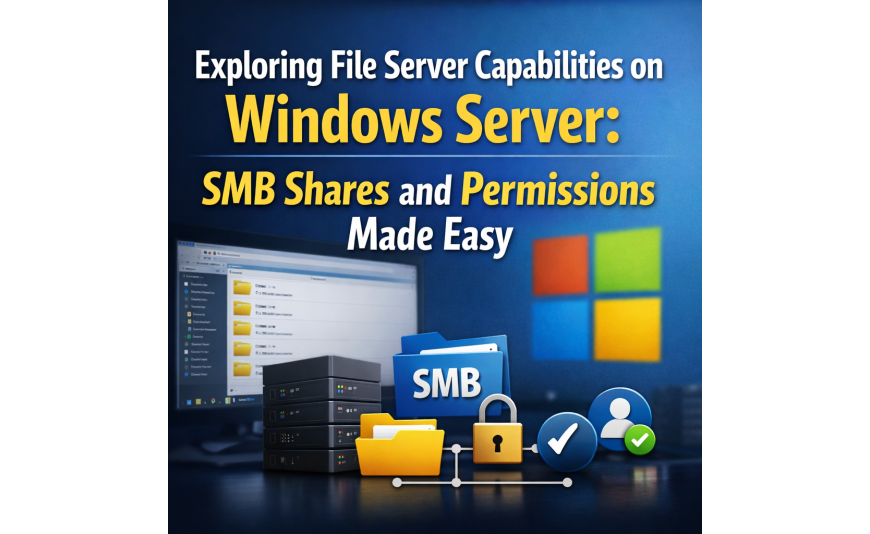
Exploring File Server Capabilities on Windows Server: SMB Shares and Permissions Made Easy
In the modern business environment, data management and accessibility have become critical components of success. Companies need reliable and efficient solutions to store, manage, and share files across multiple departments and teams. This necessity often leads organizations to explore various server solutions. One such solution is setting up a file server on Windows Server, utilizing SMB (Server Message Block) shares to ensure smooth and secure data accessibility. But why is this approach so popular, and what challenges does it address?
The primary challenge in any business is ensuring that data is not only accessible but also secure. In a world where data breaches and unauthorized access can lead to significant financial and reputational damage, setting up a robust file server system becomes imperative. Here, Windows Server with SMB shares shines as a highly effective solution, offering an intuitive interface and strong security features. This setup allows for meticulous control over who can access what, thanks to the elaborate permissions system inherent in SMB shares.
Imagine a scenario where a marketing team is working on a high-stakes campaign involving sensitive data. The need for seamless collaboration is evident, yet the information must remain secure. In such cases, a Windows Server file server, with its SMB shares and detailed permissions, provides the ideal infrastructure for balancing accessibility with security. This approach not only enhances productivity but also ensures compliance with various data protection regulations, making it a must-have for businesses looking to thrive in a data-driven world.
Understanding SMB Shares in Windows Server
SMB shares in Windows Server are a powerful way to manage file access within a network. They allow multiple users to connect to the same files without compromising security. When you set up SMB shares, you're essentially creating an environment where files can be accessed and managed from different locations, providing great flexibility for businesses. For those wondering where to buy or download the necessary software, it's important to conduct thorough research to find the best deals and ensure a smooth setup.
When configuring SMB shares, it’s crucial to understand the differences between various versions of Windows Server, as enhancements in newer versions can significantly affect performance and security. Whether you're working with Windows Server 2016 or the latest iteration, knowing these intricacies can save time and effort. Thus, before making a purchase, check for any additional features or improvements that might benefit your specific use case. Moreover, learning where to buy at a low price can also make a significant impact on your budget.
The Importance of Permissions Management
Permissions management is at the heart of maintaining a secure file server. Windows Server allows administrators to set detailed access controls, ensuring that only authorized personnel can view or modify files. This granular control is essential for protecting sensitive information and preventing data leaks. By setting the right permissions, businesses can ensure that their data remains secure without hindering productivity.
For those new to setting up permissions, Windows Server provides comprehensive tools and documentation to guide you through the process. The ability to assign specific rights to individual users or groups means that you can tailor access according to job roles, enhancing both security and efficiency. Whether you're looking to buy a new server license or upgrade an existing one, understanding how to manage permissions effectively will ensure that your investment pays off in the long run.
Steps to Set Up Your Windows Server File Server
Setting up a file server on Windows Server is a straightforward process, provided you follow the correct steps. Start by installing the necessary roles and features within the server manager. This process involves selecting the file and storage services role, which is crucial for enabling SMB sharing functionality. Once installed, you can proceed to configure your SMB shares, setting the appropriate permissions for each share.
Activation of the server is a vital step that cannot be overlooked. Without proper activation, your server might not function as expected, leading to potential downtimes or security lapses. Ensure you have a valid license key or subscription to activate your system. Buying a certified activation key from a trusted vendor is crucial for maintaining compliance and avoiding legal issues.
Advanced Features and Enhancements
Windows Server offers a plethora of advanced features that can enhance the functionality of your file server. For example, features like data deduplication and storage replica can significantly optimize storage usage and improve disaster recovery capabilities. By leveraging these advanced functionalities, businesses can ensure that their data is not only stored efficiently but also protected against potential data loss.
Considering these enhancements, it's evident that investing in a Windows Server file server can offer long-term benefits. However, it’s essential to keep your system updated to take advantage of the latest features and security patches. Knowing where to purchase upgrades and how to implement them is key to maintaining an efficient and secure server environment.
Where to Buy and Get Support
Finding a reliable vendor to purchase your Windows Server software is crucial. Many vendors offer competitive prices, but it's important to ensure that they provide genuine software with proper support. Buying from a certified vendor ensures that you receive not only the software but also the necessary support and updates to keep your system running smoothly.
Moreover, consider looking for vendors that provide comprehensive support packages, including installation and troubleshooting assistance. This ensures that you have help available when you need it, minimizing potential downtimes. Remember, investing in quality support can save you time and money in the long run, making your overall experience with Windows Server smooth and worry-free.✔️
Maximizing Efficiency with Remote Access
One of the standout features of a Windows Server file server is its capability to enable remote access, which can be a game-changer for businesses with distributed teams. This feature allows employees to access necessary files from anywhere, facilitating seamless collaboration and ensuring business continuity. Imagine a scenario where team members are spread across different geographical locations or working from home. With remote access, they can connect to the server and work on projects in real-time, eliminating geographical barriers and enhancing productivity.
However, the idea of remote access often raises concerns about security. Businesses may worry about unauthorized access or data breaches when files are accessed from outside the office. Windows Server addresses these concerns with robust security protocols, including VPN and advanced authentication methods. By implementing these security measures, companies can provide secure remote access to their staff, ensuring that sensitive information remains protected even when accessed remotely.
Leveraging Data Analytics for Better Decision Making
Another powerful aspect of setting up a file server on Windows Server is the potential to leverage data analytics for informed decision-making. With centralized data storage, businesses can easily gather and analyze data to gain insights into their operations. This can be particularly beneficial for departments like sales and marketing, where understanding customer behavior and trends can lead to more effective strategies. By utilizing tools integrated with Windows Server, companies can generate reports and visualizations that highlight key performance indicators and areas for improvement.
Some organizations may hesitate to delve into data analytics, fearing it might be too complex or resource-intensive. However, Windows Server simplifies this process by providing user-friendly tools that can be customized to fit various business needs. Additionally, with the growing availability of online tutorials and vendor support, even teams with limited technical expertise can harness the power of data analytics to drive their business forward. Investing in analytics not only enhances efficiency but also provides a competitive edge in today's data-driven market.
Ensuring Scalability for Growing Businesses
Scalability is a critical consideration for any business planning to implement a file server solution. As businesses grow, so do their data storage and management needs. Windows Server addresses this with scalable solutions that can adapt to the changing demands of an organization. Whether you're a small business anticipating growth or a large corporation with fluctuating data requirements, Windows Server provides the flexibility to scale up or down as needed.
Concerns about scalability often revolve around costs and technical complexity. Businesses may worry that scaling their server infrastructure will incur high expenses or require significant technical expertise. However, Windows Server offers cost-effective licensing options and support, making it accessible for businesses of all sizes. Additionally, the intuitive interface and comprehensive documentation allow IT teams to manage scalability with ease, ensuring that the server infrastructure can evolve alongside the business without unnecessary complications.✔️
Installation and Activation
Setting up your file server on Windows Server using SMB shares can seem daunting, but with the right guidance, it becomes a straightforward process. Start by ensuring that your Windows Server is properly installed and updated. For those wondering where to buy a license, remember that purchasing from a reputable source ensures a smooth activation process.
Once your server is set up, the next step is activating the necessary roles. Navigate to the Server Manager, then to the 'Add Roles and Features' wizard. From there, select 'File and Storage Services' followed by 'File and iSCSI Services' and ensure 'Server Message Block' (SMB) is checked.
After activation, configure your storage by navigating to the 'File and Storage Services' section. Here, you will define your shared folders and set up initial permissions, laying the groundwork for your SMB shares.
Common Issues and Troubleshooting
Even with careful setup, issues can arise. A frequent problem is permission errors. Ensure that both NTFS and share permissions are correctly configured, as mismatched permissions can lead to access issues. ✔️ Double-check that the user accounts have the correct permissions both on the local server and across the network.
Another common issue relates to network configurations. If users cannot connect to the SMB shares, verify that the server is correctly configured for network access, including firewall settings and network discovery options.
A less frequent, but notable problem, is related to DNS issues. Ensure your server’s DNS settings are properly configured to allow for seamless name resolution across your network.
List of Changes from Previous Versions
Windows Server has evolved, providing enhanced SMB functionalities. Compared to older versions, the latest iteration offers improved performance and security features. One notable change is the introduction of SMB 3.1.1, which enhances security through features like pre-authentication integrity checks.
Additionally, the latest versions have streamlined the process of setting up and managing shares, providing a more intuitive interface and better integration with Active Directory for managing permissions.
Performance improvements have been made with features like SMB Direct, which leverages RDMA-capable network adapters to provide low-latency, high-throughput connections for demanding applications.
Checklist for Setting Up SMB Shares
- Ensure Windows Server is fully updated before installation.
- Buy a license from a trusted source to avoid activation issues.
- Activate necessary roles: File and Storage Services.
- Configure initial shared folders and set permissions.
- Verify network settings, including firewall configurations.
- Check DNS settings for proper server name resolution.
- Test access with a non-admin account to ensure permissions are correctly set.
- Review server logs regularly to identify potential issues early.
- Ensure regular backups of critical data shared via SMB.
- Update server settings to reflect organizational changes, such as new user roles.
- Consult documentation or forums if advanced configuration is needed.
- Consider using encryption for sensitive data shared over SMB.
- Regularly review and update security settings to protect against vulnerabilities.
- Monitor server performance to adjust settings for optimal efficiency.
By following these guidelines and utilizing the checklist, you can efficiently set up and manage SMB shares on a Windows Server, ensuring a robust and secure file-sharing environment.