
 Español
 Italiano
 Polski


How to Fix Error 0x80072F8F - 0x20000 in Media Creation Tool – Complete Guide for Windows 7, 8.1, 10 and 11
- Site Owner
- 30 Aug, 2025
- Home
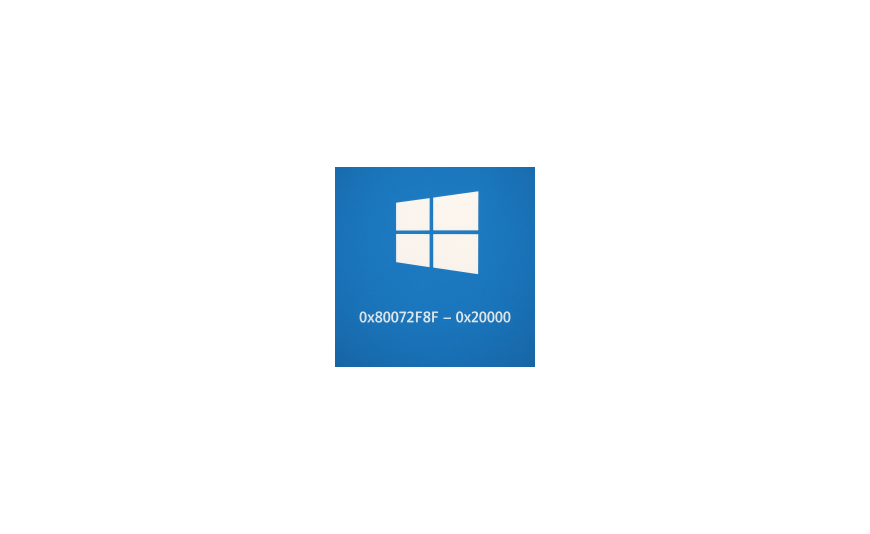
What is Error 0x80072F8F - 0x20000 in Media Creation Tool?
This error indicates a failure of secure communication between your PC and Microsoft’s servers. The most common causes include:
-
Incorrect system date and time settings.
-
Invalid or outdated SSL certificates.
-
Missing support for modern TLS (Transport Layer Security) protocols.
-
Firewall or proxy restrictions blocking HTTPS communication.
-
Lack of critical system updates required to communicate securely with Microsoft servers.
On older systems like Windows 7 or early Windows 8, support for TLS 1.2 is not enabled by default, which means the Media Creation Tool fails to authenticate connections.
Proven Solutions to Fix Error 0x80072F8F - 0x20000
1. Use a Newer System or Alternative Media Creation Method (Recommended)
Microsoft officially supports the Media Creation Tool only on Windows 8.1 and newer. If you’re trying to run it on Windows 7, you may face limitations.
Two safe alternatives:
-
Run Media Creation Tool on a Windows 10 or 11 computer and then create your USB installer.
-
Use third-party software like Rufus or UltraISO to manually create bootable installation media from an official Microsoft ISO.
Example with UltraISO:
-
Download the official Windows 10 or Windows 11 ISO file from Microsoft’s website.
-
Download and install UltraISO.
-
Insert a USB flash drive (minimum 8 GB).
-
Open UltraISO and load the ISO file.
-
Select Bootable → Write Disk Image and choose your USB drive.
-
Confirm and wait until the process finishes.
? Tip: Numerous video tutorials are available on YouTube showing how to use UltraISO for creating bootable USB drives.
2. Adjust Date and Time Settings
Incorrect system time is one of the simplest yet most overlooked reasons behind error 0x80072F8F - 0x20000.
How to fix it:
-
Right-click on the clock in the taskbar (bottom-right corner).
-
Select Adjust date/time.
-
Enable Set time automatically and Set time zone automatically.
-
If automatic settings fail, set them manually to the correct date, time, and region.
3. Install Latest Windows Updates
Older versions of Windows may lack crucial security updates that allow proper TLS communication with Microsoft servers.
For Windows 7:
-
Ensure Service Pack 1 (SP1) is installed.
-
Download and install KB3140245, which enables TLS 1.2 support.
-
Update root certificates via the Microsoft Update Catalog.
For Windows 8.1:
-
Make sure all available updates are installed from Windows Update.
-
If automatic updates fail, use WSUS Offline Update Tool to update the system manually.
4. Enable TLS 1.1 and TLS 1.2 in Windows Registry
If TLS 1.2 is disabled in the system registry, the Media Creation Tool will fail to connect.
Steps to enable TLS 1.1 and TLS 1.2:
-
Press Win + R, type
regedit, and press Enter. -
Navigate to:
-
Inside each, create a new subkey called Client.
-
Inside the Client folder, create a new DWORD (32-bit) Value named:
Enabled
-
Set its value to 1.
-
Restart your computer.
Additional Tips
-
Disable third-party antivirus or firewalls temporarily to rule out network restrictions.
-
Use a wired internet connection instead of Wi-Fi for stability.
-
Always download ISO files directly from Microsoft to avoid corrupted images.
Conclusion
The error 0x80072F8F - 0x20000 in Media Creation Tool may seem complicated, but with the right steps, you can easily overcome it.
On Windows 7, the best long-term solution is to enable TLS 1.2 (KB3140245) or simply prepare your installation USB using UltraISO or Rufus with an official ISO. On Windows 8.1, 10, and 11, ensure your system is up to date, your time settings are correct, and TLS protocols are properly enabled.
By following the above professional methods, you will successfully bypass the error and continue your installation or upgrade without unnecessary frustration.
Would you like me to also prepare a ready-to-publish HTML version of this article (with proper <h2>, <meta>, and <title> tags) so you can paste it directly into your website?






