Español
 Italiano
 Polski


Office 365 Family 6 PC 12-Month Subscription: Is It Worth It?
- 11 Jun, 2026
- Home
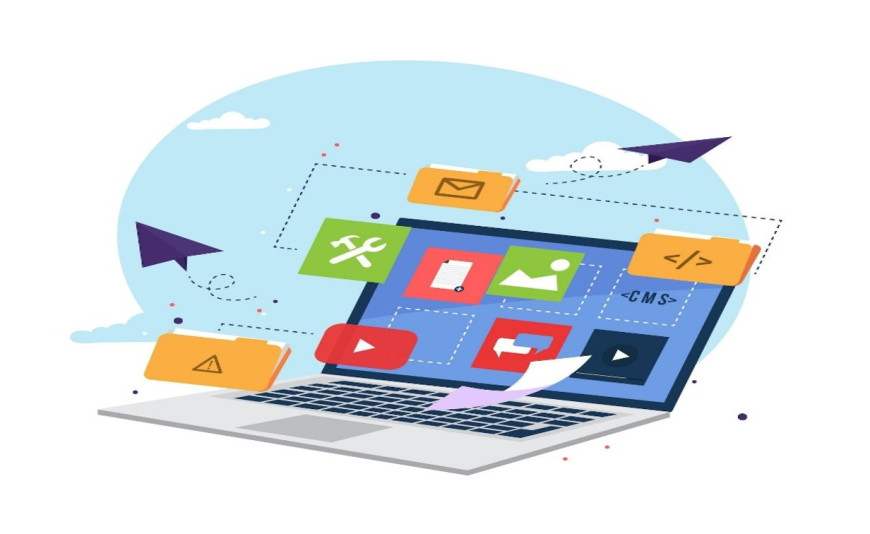
Managing data, school projects, and household budgets across multiple devices usually leads to a messy web of different software programs. Buying individual licenses for every single computer or tablet in a household gets incredibly expensive, fast. This financial headache is exactly why Microsoft structured the office 365 family 6 pc 12 month tier, offering a shared ecosystem for up to six separate people.
Paying for a recurring software service can feel like a chore when standalone alternatives exist. This breakdown looks directly at the actual value, hidden perks, and mathematical reality of this specific tier. You will learn exactly how the storage allocation works, who benefits the most from a shared plan, and whether individual options make more sense for your specific household setup.
The Math Behind Sharing the Digital Space
Most people flinch at subscription models because the costs run indefinitely. However, looking closely at the per-user breakdown reveals an interesting pricing dynamic. When a single user buys a standalone office 365 license, they pay a flat rate for one identity. Split the cost of a family plan among four, five, or six people, and the annual cost per person drops to the price of a couple of cups of coffee.
The value becomes even more obvious when you look at the massive cloud storage bundled into the plan. Each of the six users gets their own completely private 1 TB OneDrive vault. You are not sharing a single pool of space where family members can accidentally delete your tax documents or look at your private work files. This separation provides massive value for households running data-heavy creative hobbies or running secondary remote businesses from home.
Cloud Storage vs Traditional Hard Drives
Relying entirely on physical flash drives or local hard disks for backups is a risky strategy. Computers break, coffee spills happen, and hard drives eventually fail without warning.
The cloud storage aspect of the membership acts as an automated insurance policy for your files. The moment you save a document; it syncs across your devices instantly.
- Ransomware Protection: The software monitors your folders for suspicious, sudden mass file changes and allows you to roll back your entire document history to a clean state if malicious software hits your machine.
- Mobile Auto Backups: You can set the mobile apps to instantly save your phone's camera roll to your private storage vault, clearing up local phone space automatically.
- On-Demand Files: Users can view and access terabytes of cloud data from a lightweight laptop without actually downloading the files and filling up the local drive.
Up-to-Date Applications and Cross-Platform Freedom
Software updates used to mean buying an entirely new disc every few years. A major benefit of this cloud system is that your applications never grow obsolete. The software handles patches quietly in the background, giving you immediate access to new Excel formulas, modern PowerPoint transition animations, and security updates the day they release.
The platform functions smoothly regardless of whether your household is divided between different operating systems. One child can use a Mac for college essays, another can use a Windows desktop for gaming, and parents can check budgets on an iPad. The membership follows the person, not the specific machine. Each user can install the core productivity applications on up to five devices simultaneously, meaning your work travels with you from your home office desktop to your phone effortlessly.
When an Individual Key Makes More Sense
Despite the massive value of a shared household bundle, it is not the correct choice for absolutely everyone. If you live alone, do not care about cloud storage backups, and only use a single computer, buying a dedicated office 365 personal key 12 months package is far more logical.
Single users who purchase the family plan hoping to sell the extra slots to strangers online usually encounter logistical annoyances. Managing invitations requires linking accounts under a central organiser, meaning you remain responsible for the renewal tracking. If your software needs are strictly limited to basic typing tasks on one laptop, a singular key keeps your digital footprint small and your annual expenses lower.
Conclusion
Choosing the right digital setup comes down to your household size and backup habits. The shared plan excels if you want to protect multiple family computers, need deep cloud storage for photos, and use different types of devices daily. It removes the stress of tracking individual software versions.
Unlocking your household productivity does not have to break your annual budget. When you decide which version fits your current home setup, Key-soft offers verified, budget-conscious digital activation codes sent straight to your email inbox, getting your entire family connected to genuine productivity tools without traditional retail markups.
FAQs
Can other family members see my private files on a shared plan?
No, privacy is strictly maintained across all accounts. Even though one person manages the central billing and sends out the invitations, every family member logs in using their own private Microsoft account. Your 1 TB OneDrive storage and email inbox remain completely invisible to everyone else on the plan.
What happens to my data if the 12-month subscription expires?
If your membership lapses, your applications enter a read-only state, meaning you can still view and print your documents but you cannot edit them. Your stored cloud files are not deleted immediately; Microsoft keeps them safe for a grace period, allowing you time to download them locally or renew your access key.
Can I upgrade from a personal membership to a family setup easily?
Yes, switching tiers is a very simple process. When you activate a family code on an account that currently holds an active personal membership, the remaining time on your existing personal account automatically converts and gets added to the new family timeline, adjusting your expiration date forward.
Do children need a full Microsoft account to use their slot?
Yes, every individual user requires a standard Microsoft email or account identity to accept an invitation slot. For younger children, parents can create a child account within the Microsoft Family Safety ecosystem, which allows the child to use the full software applications while letting parents manage safety settings.