Español
 Italiano
 Polski


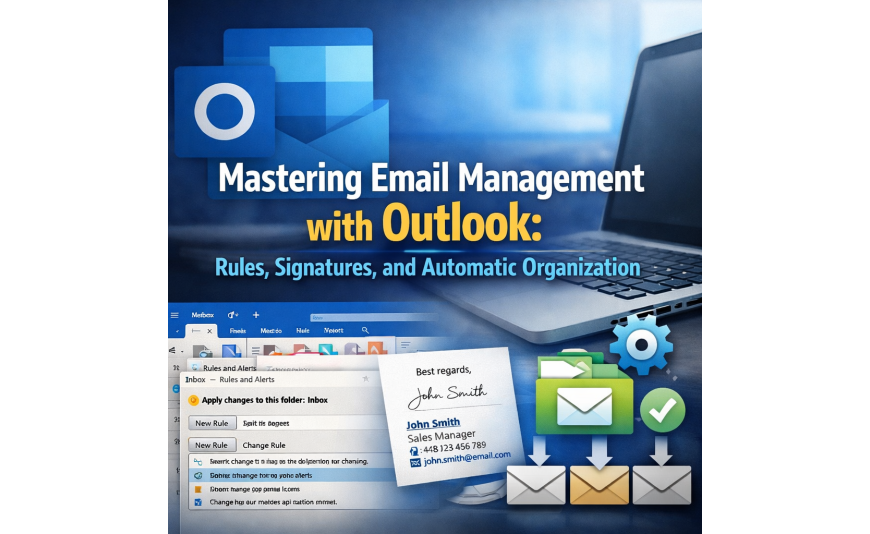
Mastering Email Management with Outlook: Rules, Signatures, and Automatic Organization
- 29 Aug, 2026
- Home
Mastering Email Management with Outlook: Rules, Signatures, and Automatic Organization
In the modern business world, email has become an indispensable tool for communication. Yet, as the volume of emails grows, so does the complexity of managing them effectively. Many professionals find themselves overwhelmed by a cluttered inbox, which can lead to missed messages, delayed responses, and decreased productivity. Faced with these challenges, the need for an efficient email management solution becomes crucial.
Outlook is more than just an email client; it's a powerful ally that can transform the way you handle your digital correspondence. With features like rules, signatures, and automatic organization, Outlook empowers users to take control of their inboxes. Imagine being able to filter, sort, and respond to your emails with ease — that's the kind of efficiency that Outlook brings to the table. For busy professionals and teams, these features are not just conveniences, but essential tools for success.
Consider a scenario where you're constantly sifting through dozens of promotional emails just to find important client communications. Or perhaps you’re spending too much time crafting and re-typing similar responses. This is where Outlook's capabilities can make a real difference. By setting up rules to automatically sort your emails, or creating a signature that adds a professional touch to your correspondence, you can reclaim your time and focus on what truly matters.
Understanding Outlook Rules for Efficient Email Management
Outlook rules are like personal assistants for your inbox, automating repetitive tasks that would otherwise consume your precious time. With rules, you can automatically sort incoming messages into specific folders, flag important emails, or even forward messages to colleagues. This feature is particularly useful for those who receive a large volume of emails daily and need a systematic way to prioritize their responses.
Setting up rules in Outlook is straightforward. By defining conditions and actions, you can tailor the email handling process to suit your specific needs. For example, you might create a rule to move all emails from a particular client into a designated folder, ensuring you never miss an important update. Such automation not only enhances productivity but also reduces the cognitive load associated with email management. In a world where time is money, knowing where to buy software that supports such features at a low price is invaluable.
Enhancing Professionalism with Outlook Signatures
First impressions matter, and in the digital world, your email signature is often the initial hallmark of professionalism recipients see. Outlook allows for the customization of signatures, enabling users to include essential information such as contact details, social media links, and even company logos. A well-crafted signature can reinforce your brand identity and provide recipients with useful ways to connect with you outside of email.
Creating a signature in Outlook is a simple yet powerful way to enhance your email communication. Whether you're sending emails to potential clients or internal team members, a consistent signature helps convey professionalism and attention to detail. Outlook's signature editor lets you design multiple signatures for different purposes, ensuring that your communication remains appropriate and effective. When considering where to find Outlook at a good price, it's worth remembering the value these features bring to your professional toolkit.
Streamlining Your Inbox with Automatic Organization
Automatic organization in Outlook takes the guesswork out of managing your emails. By leveraging features like focused inbox and categories, you can ensure that vital communications stand out while less urgent messages are neatly categorized for later review. This organizational structure is invaluable for professionals who need to maintain clarity and efficiency in their digital communication.
Outlook's focused inbox separates important emails from less critical ones, allowing you to concentrate on what truly requires your attention. Additionally, categories enable you to tag emails with specific labels, making it easier to retrieve information when needed. When you activate these features, you enhance your ability to manage emails effectively. In the competitive landscape of today's market, knowing where to purchase tools like Outlook that offer these capabilities at a low price is essential for maintaining an edge.
Securing Your Communication with Outlook
In an age where digital security is paramount, ensuring the safety of your email communication is critical. Outlook provides robust security features, including encryption and advanced phishing protection, to safeguard your data and protect against unauthorized access. For those handling sensitive information, these security measures offer peace of mind and compliance with industry regulations.
Outlook's security settings are easy to configure, helping you protect your emails with minimal effort. Whether you're dealing with confidential client data or internal company communication, Outlook offers the tools necessary to keep your information secure. Understanding where to buy legitimate Outlook software with full security features is crucial for businesses and individuals alike.
Customizing Your Outlook Experience for Maximum Efficiency
Finally, the ability to customize your Outlook interface ensures that your email client works for you, not against you. With options to adjust the layout, create custom views, and set up shortcuts, Outlook adapts to your workflow, enhancing productivity and user satisfaction. This personalization makes Outlook a versatile tool for anyone looking to optimize their email management.
Custom views allow you to organize your inbox in a way that makes sense for your specific needs, such as displaying emails from key contacts or highlighting unread messages. Shortcuts provide quick access to frequently used features, further streamlining your email process. When it comes to deciding where to buy Outlook, considering these customizable features can guide you towards a purchase that truly meets your needs and budget.
Maximizing Efficiency with Outlook Calendar Integration
Outlook's calendar integration is a game changer for professionals who juggle numerous appointments and deadlines. By syncing your calendar with your email, Outlook allows you to manage your schedule seamlessly. This feature ensures that you never miss an important meeting or deadline, as all your commitments are displayed in one consolidated view. The calendar also allows you to set reminders, helping you stay on top of tasks without the need for constant manual checks. This integration is particularly beneficial for those whose days are filled with meetings, as it provides a clear picture of daily commitments and available time slots ✔️.
Some users might worry about the complexity of setting up calendar integrations or fear they may inadvertently share sensitive information. However, Outlook simplifies this process with user-friendly settings and permissions. You can control who has access to your calendar, ensuring your privacy is protected while still reaping the benefits of a well-organized schedule. Understanding how to effectively use these features can eliminate scheduling conflicts and enhance time management skills, allowing you to focus on high-priority tasks.
Utilizing Outlook's Task Management for Improved Productivity
Outlook's task management feature is essential for anyone looking to boost their productivity and ensure that no task falls through the cracks. By creating and organizing tasks within Outlook, you can keep track of both short-term and long-term projects. Tasks can be prioritized, categorized, and assigned deadlines, providing a comprehensive overview of what needs to be accomplished. This tool is especially useful for professionals managing multiple projects simultaneously, as it helps maintain clarity and focus on the most critical tasks.
Users new to task management might hesitate, thinking it requires additional effort without tangible benefits. However, the simplicity with which tasks can be added and monitored in Outlook dispels these concerns. By incorporating task management into your daily routine, you ensure that important responsibilities are not overlooked. Moreover, as tasks are completed, you can easily update their status, allowing for a sense of accomplishment and progress. Buying into the use of such a system can lead to more efficient work habits and a significant reduction in stress related to forgotten tasks.
Boosting Collaboration with Outlook's Shared Features
Collaboration is crucial in modern work environments, and Outlook's shared features make it easier than ever to work effectively with team members. With options to share calendars, contacts, and even tasks, Outlook ensures that everyone is on the same page. This shared functionality is particularly advantageous for teams spread across different locations or those working remotely, as it fosters a sense of unity and coordination. By facilitating easy access to shared resources, Outlook minimizes misunderstandings and enhances group efficiency.
Some users might be concerned about the security implications of sharing information. However, Outlook addresses these worries by providing robust privacy controls, allowing users to determine what information is shared and with whom. This means you can collaborate with confidence, knowing your data remains secure. Investing in a tool that offers such collaborative capabilities at a low price is a smart move for any organization looking to enhance team productivity and cohesion.
Installation and Activation of Outlook Rules
Activating Outlook's features such as rules, signatures, and automatic email organization can significantly enhance your email management experience. Here's how you can get started:
- First, ensure you have Outlook installed on your computer. If not, you can buy a subscription from the official Microsoft website.
- Open Outlook and navigate to the "File" menu. From there, select "Options" and then click on "Mail" to access mail settings.
- Under the "Rules and Alerts" section, you can start setting up rules to automatically manage your incoming messages.
- For signing, go to "Signatures" and create a new one that suits your professional needs.
These steps will help you personalize your Outlook experience and keep your inbox organized. Remember, the key to effective email management is consistency in applying these rules.
Common Issues and Troubleshooting
While using Outlook, you might encounter some common issues that can hinder your workflow. Here are a few tips to help you resolve them:
- If your rules are not working as expected, check if they are enabled and correctly set up. Sometimes, a simple restart of Outlook can resolve the issue.
- For signature problems, ensure that the correct signature is selected for your default email account.
- In case your automatic sorting is not functioning, verify that no conflicting rules are set up.
By following these troubleshooting steps, you can quickly get back to efficiently managing your emails.
Key Changes from Previous Versions
Outlook has undergone several updates to enhance user experience. Here are some important changes from older versions:
- Improved user interface for better navigation and easier access to settings.
- Enhanced rules feature that allows more complex conditions and actions.
- Integration with Microsoft Teams for seamless communication and scheduling.
These updates have made Outlook more powerful and user-friendly, making it a great tool for personal and professional use alike.
Checklist for Effective Outlook Setup
- Ensure Outlook is installed and updated to the latest version.
- Buy a subscription if necessary, for full access to features.
- Check where to buy licensed versions for the best deals.
- Setup your email accounts correctly.
- Create and manage effective rules for inbox organization.
- Customize your email signature for professionalism.
- Regularly update your rules to reflect changes in your workflow.
- Take advantage of integrations with other Microsoft services.
- Back up your email data regularly.
- Explore third-party add-ins to enhance functionality.
- Learn keyboard shortcuts to improve efficiency.
- Ensure your system security settings are up to date.
- Consider training sessions or tutorials for advanced features.
- Stay informed about the latest updates and features in Outlook.
By following this checklist, you can ensure that your Outlook setup is efficient and tailored to your needs. Remember to always explore new features as they become available to keep your skills sharp and your email management efficient.