
 Español
 Italiano
 Polski


How to Check if Your Computer Meets the Requirements for the Latest Version of Windows
- 12 Mar, 2026
- Home
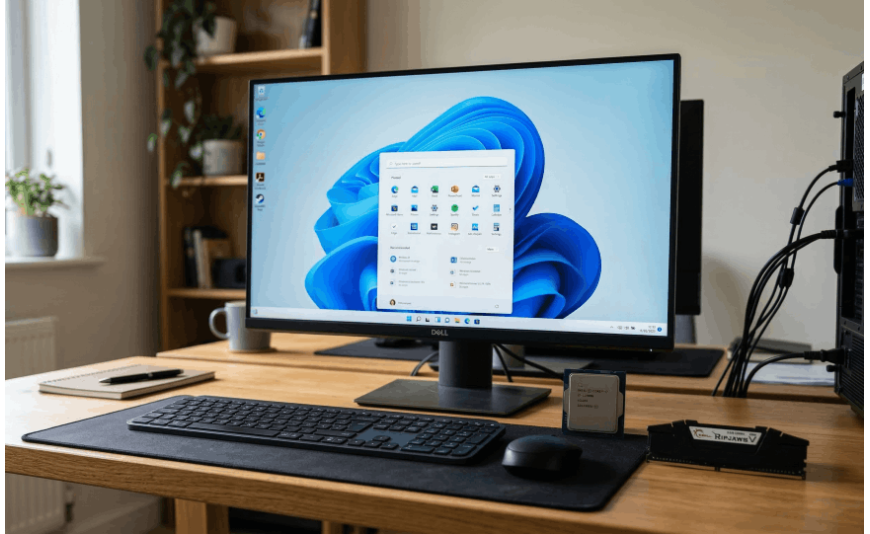
The release of a new version of an operating system always raises questions about hardware compatibility. Many users wonder how to check whether their computer meets the requirements of the latest Windows version. In the case of Windows 11, the list of technical conditions is more restrictive than for previous editions. Before deciding to install it, it is worth analyzing your device’s specifications and making sure the update will proceed without issues.
Windows 11 requirements - what do they actually mean for your computer?
The official requirements for Windows 11 include a 64-bit processor with a clock speed of at least 1 GHz and two cores, 4 GB of RAM, and 64 GB of available disk space. The system also requires support for UEFI, the Secure Boot feature, and a TPM 2.0 module. For many older computers, the last element is the biggest barrier.
In practice, this means that even hardware running Windows 10 smoothly may fail the compatibility check. For that reason, it is important to verify the specifications carefully instead of relying solely on a general impression of performance.
Minimum Windows 11 requirements vs. real-world performance
The minimum Windows 11 requirements define the technical threshold that allows the system to be installed. A computer with 4 GB of RAM and a basic HDD will run the system, but it may operate slowly when performing more demanding tasks.
If you are wondering whether your computer can handle Windows 11 in everyday use, pay attention to:
- the amount of RAM - 8 GB provides much smoother performance,
- the type of drive - an SSD significantly reduces system startup time and application loading,
- the processor generation - newer models offer better energy efficiency and performance optimization.
The minimum hardware requirements for Windows 11 are only a starting point, while real working comfort depends on having additional computing power in reserve.
How to check Windows 11 compatibility without opening the computer case
The easiest way is to use the official Microsoft PC Health Check tool. The program automatically analyzes the configuration and indicates any missing requirements. Alternatively, you can use the built-in Windows command “System Information,” which allows you to check the BIOS version, boot mode, and processor model.
How to check if your computer meets the requirements of the latest Windows - a practical checklist
Before clicking “Update,” go through a short checklist:
- check the processor model and compare it with the list of supported CPUs,
- make sure the BIOS operates in UEFI mode,
- verify that Secure Boot is enabled,
- confirm the presence of TPM 2.0,
- evaluate the amount of RAM and available disk space.
Only after such an analysis can you more confidently assess whether your computer will run Windows 11 without the need to upgrade its components.
Is it worth upgrading to Windows 11 if your hardware barely meets the minimum requirements?
This question appears very often. The decision depends on how the computer is used. The new system version offers a refreshed interface, improved window management, and enhanced security features. If you mainly use your computer for browsing the internet, office work, and communication, the upgrade may be a good choice. However, if older hardware is used for more demanding tasks such as graphic editing, it may be wiser to first increase the RAM or replace the drive with an SSD.
A careful check of the parameters helps avoid performance and compatibility problems. Analyzing Windows 11 requirements is not a formality but a practical step in preparing for the update. Thanks to that, installing the new system becomes a well-considered decision rather than a risky experiment.






